Colemak is an alternative keyboard layout designed around English touch typing. I became interested in it because it places many frequently used letters on the home row. That design goal is worth exploring, but it does not guarantee that every typist will become faster or avoid discomfort.
What the heatmaps show
These screenshots come from Keyboard Heatmap Visualization. They display how a sample of text distributes key presses across two layouts.
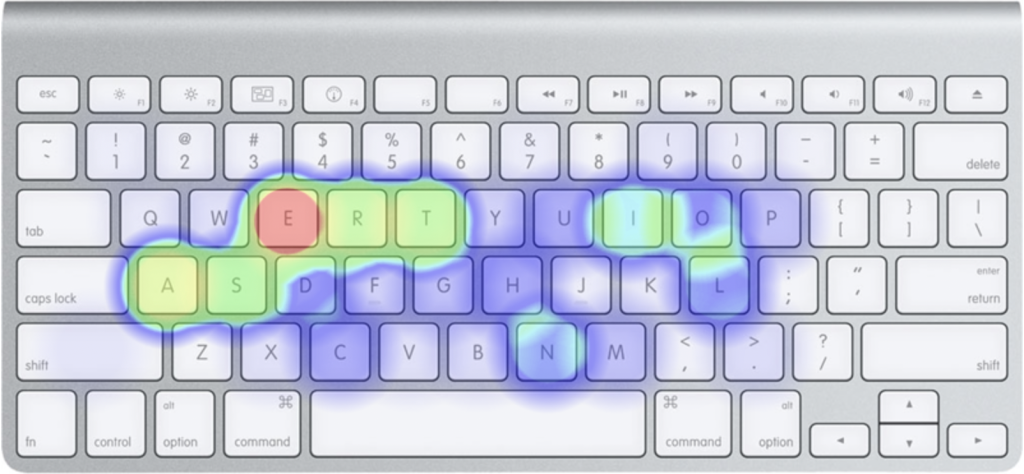
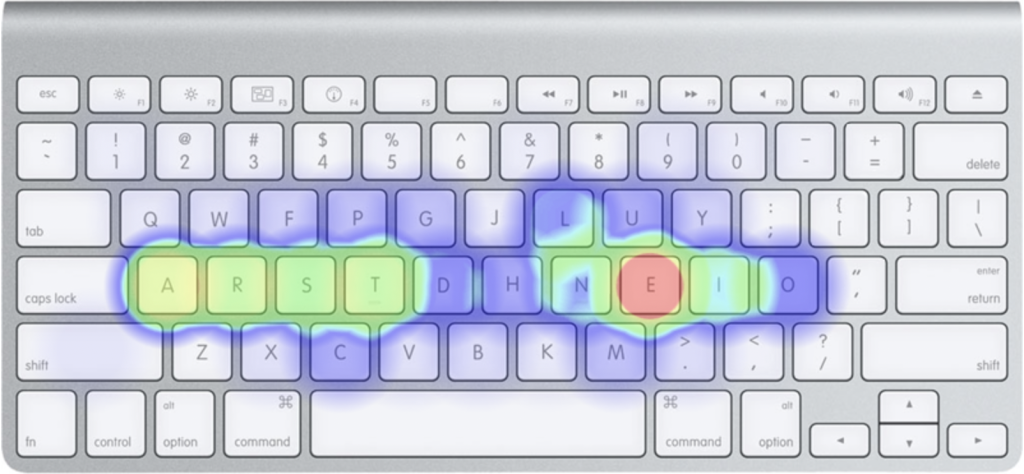
For this sample, Colemak concentrates more presses on the home row. A heatmap does not measure typing speed, learning time, finger travel between successive keys, or comfort. Its frequencies also depend on the text: ordinary English prose, source code, and another language can produce different patterns.
The Colemak project's website explains the layout and its design goals. I would treat a switch as a personal experiment rather than accept claims of guaranteed faster or pain-free typing.
Adding the layout
On Windows, check the available keyboard layouts in your language settings first. Microsoft now documents a built-in Colemak keyboard layout, so the old statement that Windows never includes it is out of date. Availability depends on the installed Windows version. If it is absent, consult the Colemak project's installation instructions for your system. Windows normally uses Win + Space to switch installed input layouts.
On macOS, add Colemak as an input source in Keyboard settings, following Apple’s input-source instructions. Keep your existing QWERTY input source if you want to switch back. The configured input-source shortcuts determine how you switch; Control + Space is commonly assigned to selecting the previous input source.
Adding a software layout changes what keys produce; it does not change the printed keycaps. The onscreen keyboard can help while learning the positions.
Practicing without making the switch harder than necessary
I originally recommended keybr as a typing-practice resource. Select the intended layout and start with short sessions focused on accuracy. Compare progress using similar text and conditions, rather than treating a single speed result as conclusive.
Keeping QWERTY available is useful for shared computers and unfamiliar devices. You do not have to abandon one layout permanently to learn another. The practical question is whether the benefits you experience justify the time spent learning and maintaining it.